AI Carousel Prompt Template for Six Connected Slides
A useful carousel prompt gives each slide a different job while keeping one visual system across the set. Define the reader, the central idea, source notes, slide order and next action before requesting images. Review the cover at phone size, then carry the same typography, palette and image direction into the interiors.
By PromptPack · Reviewed
What do you need?
A text assistant, an image tool or design editor, source notes and time to review each slide. Generation credits and publishing accounts are separate.
Copy and customize this prompt
Replace each bracketed field. Keep unknown facts marked as missing so they can be resolved before production.
Plan a six-slide carousel for [AUDIENCE] about [ONE QUESTION].
Use only these source notes: [VERIFIED FACTS AND LINKS]. Mark gaps explicitly.
Reader takeaway: [ONE USEFUL IDEA]. Next action: [ONE ACTION].
Slide jobs: 1 cover promise; 2 context; 3 explanation; 4 worked example; 5 practical check; 6 takeaway and next action.
Define one visual system: [CANVAS], safe margins, palette roles, type hierarchy, image medium and page markers.
For each slide return a headline, short body, image direction, source note and suggested alt text.
Keep the visual system consistent and let the content determine each layout.
Separate fictional examples from sourced facts. Do not invent studies, quotes or engagement results.
Before generating images, flag dense text, repeated slide jobs and an unsupported cover promise.
Worked example: inputs, outputs and revisions
We filled the template with a sourced topic: how to choose alt text, using the W3C WAI alt decision tree. The plan came from the template; the slides were then laid out in HTML and CSS and exported as images. No image generator was used.
How it was run: Generated on 28 October 2026 in a Claude Code session by Claude Opus 5.5 (model ID claude-opus-5-5). Slides composed in HTML/CSS with the Figtree font and exported at 1080 × 1350 px with headless Chrome. W3C sources checked on the same day. Cost was not measured.
Input: the filled template
Plan a six-slide carousel for small business owners who edit their own website about one question: what should the alt text say for each image?
Use only these source notes: W3C WAI "An alt Decision Tree" (https://www.w3.org/WAI/tutorials/images/decision-tree/, updated 13 May 2024). Decorative image or text repeated nearby: empty alt. Image inside a link or button: say where it goes or what it does. Simple image that adds meaning: a brief description of that meaning. Graph or complex image: put the information elsewhere on the page. Image of text not shown elsewhere: include that text. Mark gaps explicitly.
Reader takeaway: decide what the image does before writing its alt text. Next action: check the images on your own homepage with the decision tree.
Slide jobs: 1 cover promise; 2 context; 3 explanation; 4 worked example; 5 practical check; 6 takeaway and next action.
Define one visual system: 1080 x 1350 canvas, 80 px safe margins, palette roles (cream #FFFBF2 background, ink #0B0B0F text, pink #F598F2 slide marker, yellow #FFE14D highlight), Figtree headlines at weight 800 and body at 500, flat shapes instead of photographs, page markers "n / 6".
For each slide return a headline, short body, image direction, source note and suggested alt text.
Keep the visual system consistent and let the content determine each layout.
Separate fictional examples from sourced facts. Do not invent studies, quotes or engagement results.
Before generating images, flag dense text, repeated slide jobs and an unsupported cover promise.
First output: the six-slide plan
Six-slide plan (version 1)

Flags before design
- Slide 3 risks density: five image types in one slide. Keep each to one line.
- Slide 4's bakery page is a fictional example; label it on the slide.
- Cover promise is supported only if slide 3 covers all five cases from the source.

1 / 6 Cover promise
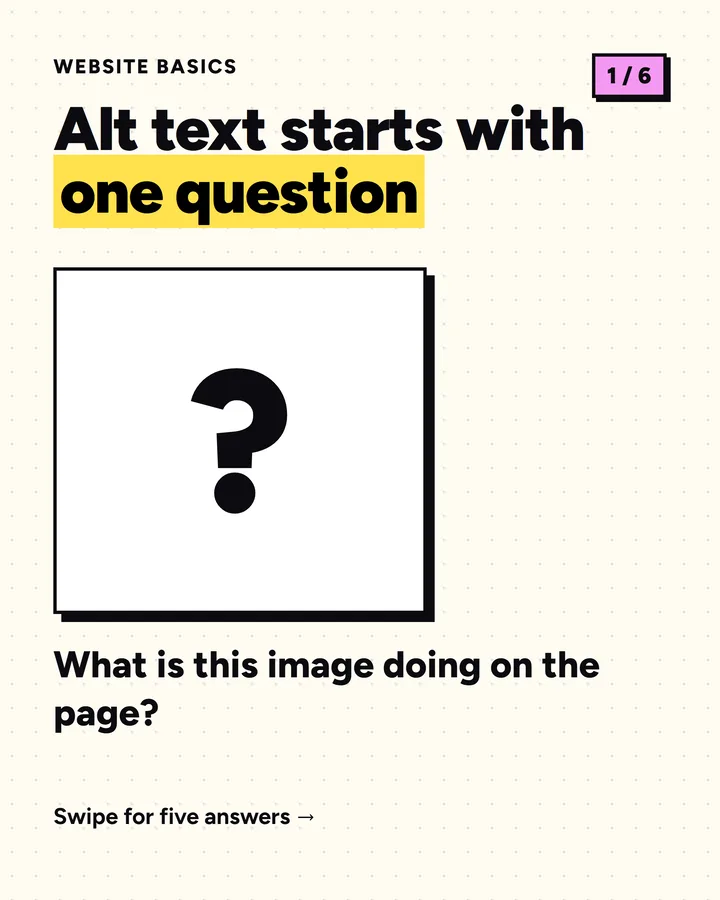
Headline: Alt text starts with one question
Body: What is this image doing on the page?
Image: a large image frame with a question mark.
Source: none (promise only).
Alt text: Cover slide: "Alt text starts with one question: what is this image doing on the page?"

2 / 6 Context
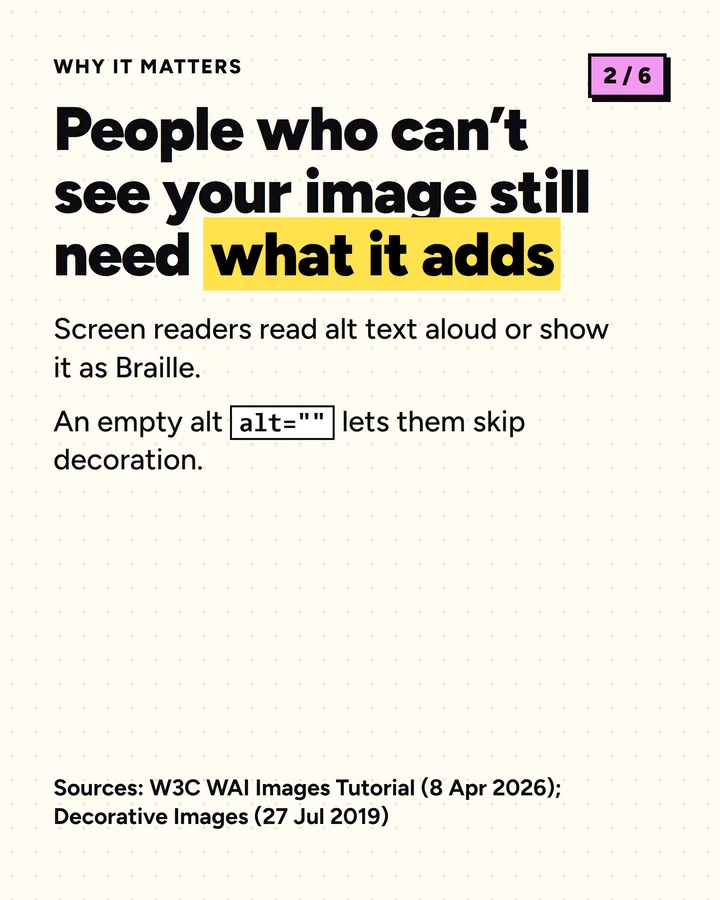
Headline: People who can't see your image still need what it adds
Body: Screen readers read the alt text aloud. Empty alt tells them to skip the image.
Image: a speech bubble coming out of an image frame.
Source: W3C WAI images tutorial. Gap: the decision tree page itself does not describe screen readers; cite the WAI Images Tutorial if this line stays.
Alt text: An image frame with a speech bubble reading its alt text aloud.

3 / 6 Explanation
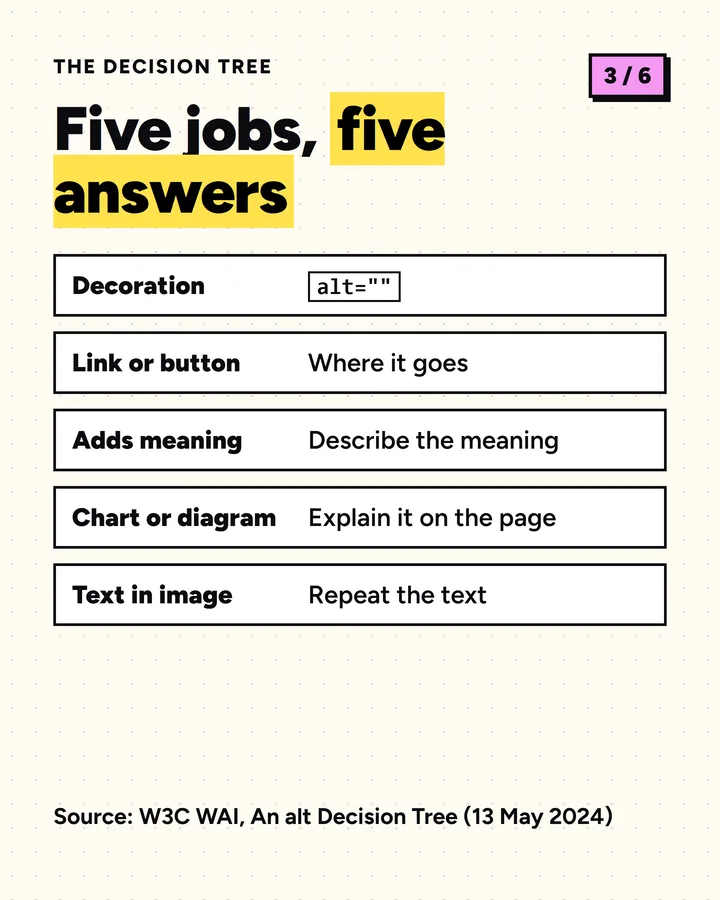
Headline: Five jobs, five answers
Body:
Decoration → alt=""
Link or button → where it goes
Adds meaning → describe the meaning
Chart or diagram → explain it on the page
Text in the image → repeat the text
Image: five small icons in a column, one per row.
Source: W3C WAI, An alt Decision Tree (13 May 2024).
Alt text: A list of five image jobs and the alt text each one needs, as listed in the slide text.

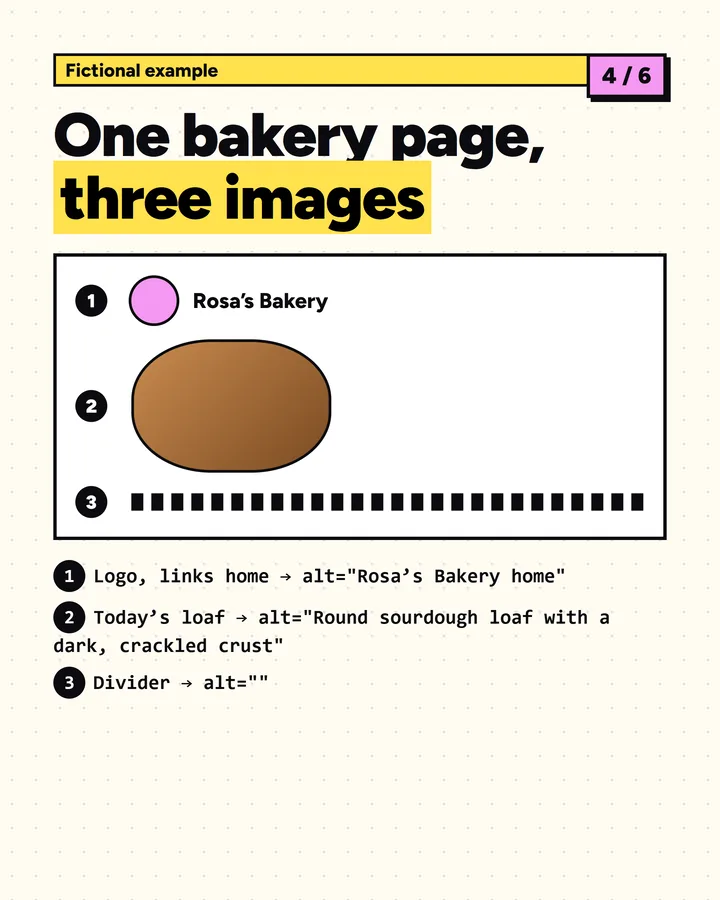
4 / 6 Worked example (fictional)
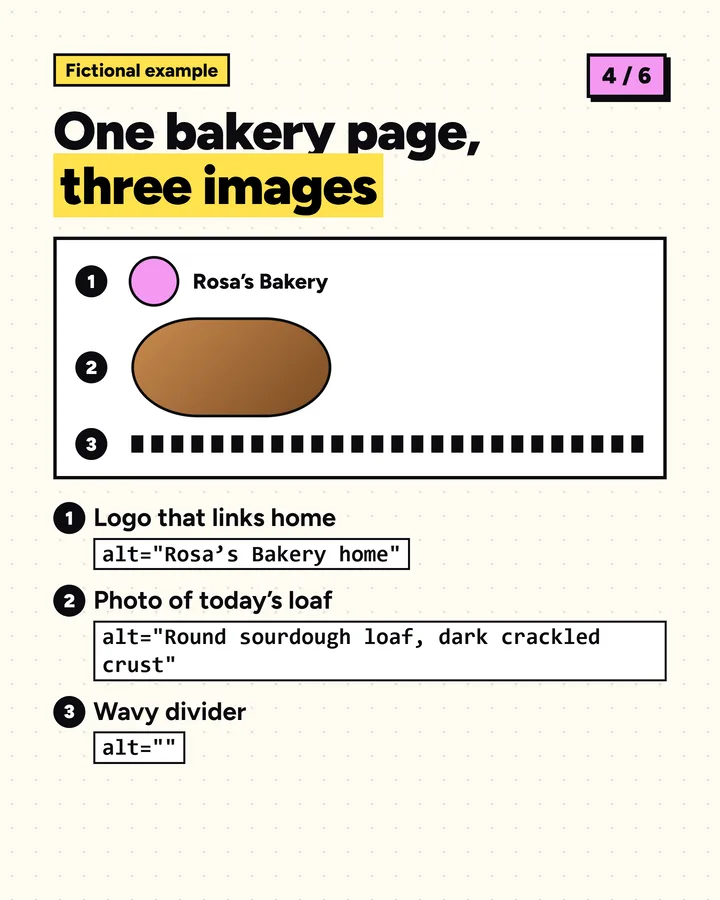
Headline: One bakery homepage, three images
Body:
Logo linking home → alt="Rosa's Bakery home"
Photo of today's sourdough → alt="Round sourdough loaf with a dark, crackled crust"
Wavy divider line → alt=""
Label: Fictional example.
Image: a simple page wireframe with the three images marked 1, 2, 3.
Source: decision tree cases (functional, informative, decorative).
Alt text: A page sketch with a linked logo, a bread photo and a divider, each labelled with its alt text.

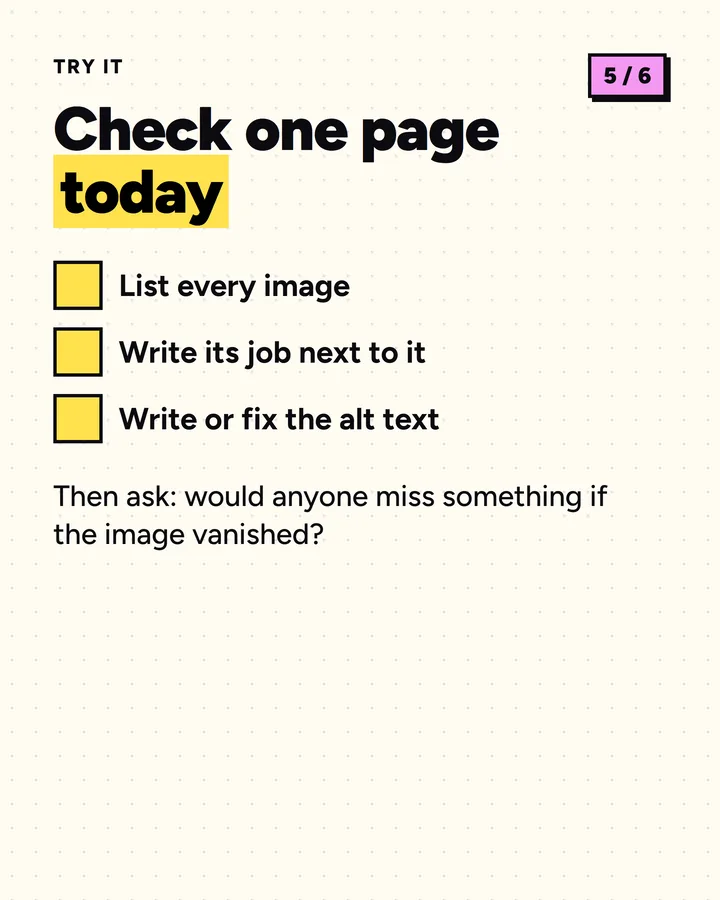
5 / 6 Practical check
Headline: Check one page in ten minutes
Body: List every image. Write its job next to it. Then write or fix the alt text. Ask: would someone miss anything if the image vanished?
Image: a checklist with three ticks.
Source: method based on the decision tree; the ten-minute figure is an estimate, not a measurement. Remove it or label it.
Alt text: A three-item checklist: list images, name each job, fix the alt text.

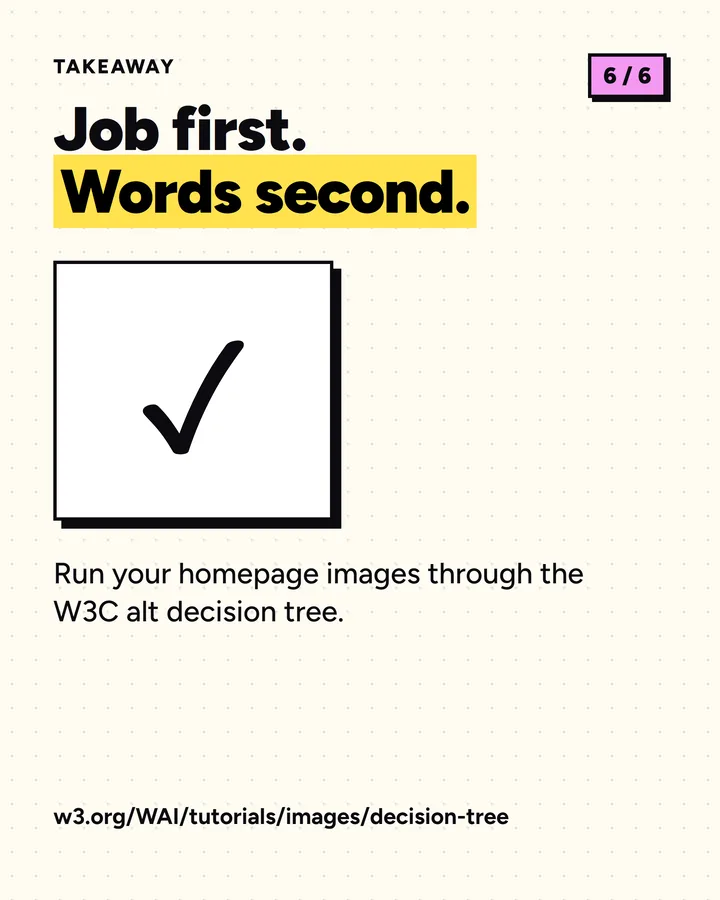
6 / 6 Takeaway and next action
Headline: Job first. Words second.
Body: Run your homepage images through the W3C alt decision tree today.
Image: the image frame from the cover, now with a tick.
Source: link to the decision tree in the caption.
Alt text: Closing slide: "Job first. Words second." with a link prompt to the W3C alt decision tree.

Caption draft: Alt text is easier when you start with the image's job. Five cases from the W3C WAI alt decision tree, plus a fictional bakery example. Decision tree: w3.org/WAI/tutorials/images/decision-tree/
What the review found
- The plan flagged two of its own lines before any design work: slide 2 cited no source for how screen readers use alt text, and slide 5 promised a check “in ten minutes”, which nobody had measured.
- Both were resolved before design (see the plan revisions): slide 2 now cites two WAI pages and slide 5 drops the time claim.
- Viewed at phone size, the first layout of slide 4 had its label colliding with the page marker, and the alt text lines, the point of the example, were the smallest text in the set.
- The source lines on slides 2, 3 and 6 were about 9 px tall at phone size, which breaks the template’s own advice to keep sources legible.
Revision prompt
Revisions to the plan before design (version 2)

Slide 2: the decision tree does not mention screen readers, so the line now cites two other WAI pages.
  Body: "Screen readers read alt text aloud or show it as Braille. An empty alt (alt="") lets them skip decoration."
  Sources: W3C WAI Images Tutorial (updated 8 April 2026); W3C WAI Decorative Images (updated 27 July 2019).
Slide 5: "in ten minutes" removed; it was an estimate, not a measurement.
  Headline: "Check one page today"
All other slides unchanged.
Final slides
Slide 4 before and after
Slide source (HTML) · First layout (HTML)
The revised layout separates the label from the page marker, enlarges the example lines and sets every source line in bold at a larger size.
Limitations of this example
- The source lines are still small on a phone. A caption with the links is the better place for full citations.
- The carousel was not posted, so there are no reach or engagement figures.
- Laying out slides in HTML needs some CSS knowledge; a design editor gives the same control over exact text. If you use an image generator, check every word it renders.
- Slide alt text in the plan is a draft for review, not a finished description.
How do you plan six slides without repeating yourself?
Write the takeaway first, then assign a job to each slide. If two slides only restate the same claim, combine them and use the space for an explanation or example. The cover creates an expectation; the interiors should deliver on it. End with a relevant action instead of an unrelated follow request.
For a fictional desk-lighting checklist, the set could move from a clear question to a description of the workspace, a demonstration of where shadows appear, an illustrative before/after layout, a practical check and a final reminder. Label that staging as an example and avoid inventing measured improvements.
How do you keep generated slides visually consistent?
Create the style block once. State the role of each color, the headline and body hierarchy, the image medium, margins and recurring markers. Repeat those decisions when briefing each slide. Generate or compose the cover first and inspect it at phone size before producing the whole set.
Consistency does not mean six identical layouts. Keep the type and image treatment recognizable while varying the composition to fit the slide's job. Use a design editor when a generation tool cannot reliably place exact text.
What belongs in the production handoff?
- Approved slide order and exact copy.
- Final images with predictable file names.
- Source links for factual claims and labels for fictional examples.
- A caption, suggested alt text and the next-action destination.
- An owner and revision so the right files are approved.
Image creation and publishing are separate steps. Review the exact exported files before posting. If you later connect a publishing tool, use the platform's current documented route and confirm account requirements.
How do you review readability and accessibility?
- Read every headline on a phone-sized preview.
- Check text contrast, margins and line breaks across the whole set.
- Keep factual source notes legible rather than shrinking them into decoration.
- Write alt text that communicates the meaningful content and image context.
- Check that the caption adds context and does not contradict the slides.
Alt text is a starting draft to review, not a place to repeat search keywords. Assess real post results before changing the next brief. The template supplies a process, not a promised reach or engagement rate.
Sources and review
This original exercise is written by PromptPack. It is not a customer case study or a promise of a particular result. For related review guidance, see W3C guidance on informative images.
What should you do next?
Try the free exercise in your own tools first. For the complete guide, editable files, actual examples, price and requirements, look inside the related Carousel Studio. Tool accounts and credits are separate.
Written by the seller of that kit. You can use this public template without purchasing.